
Interior Render
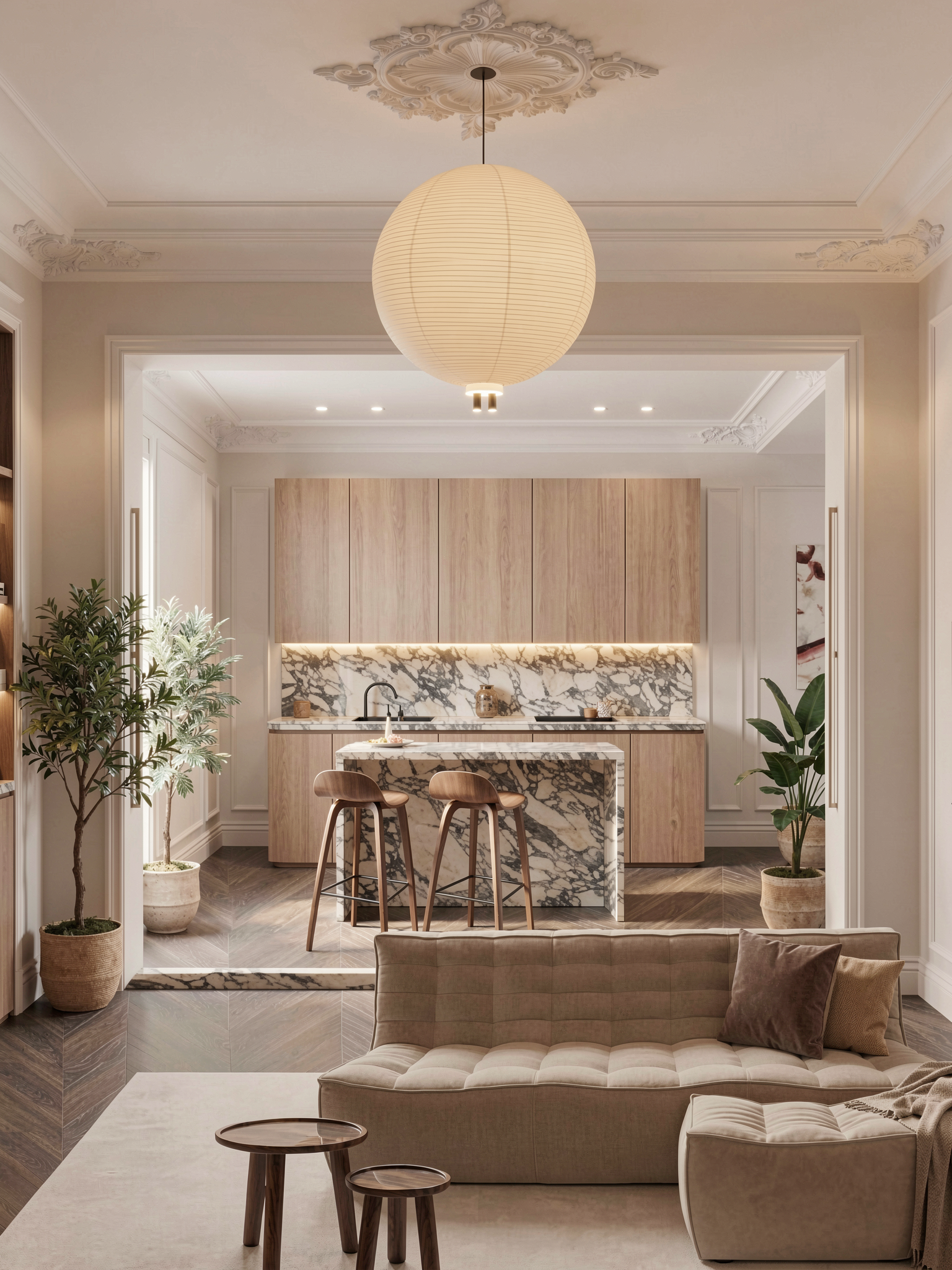
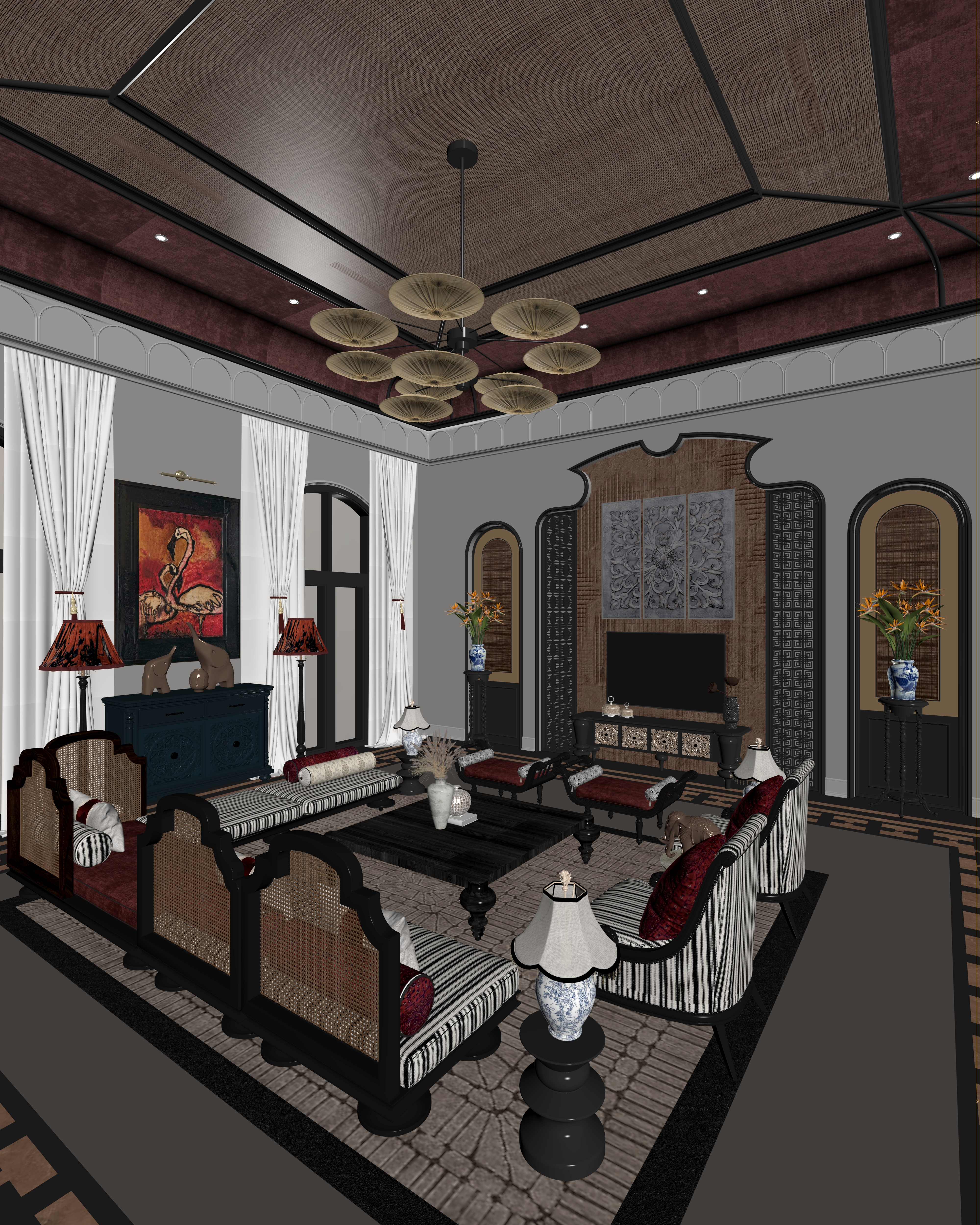
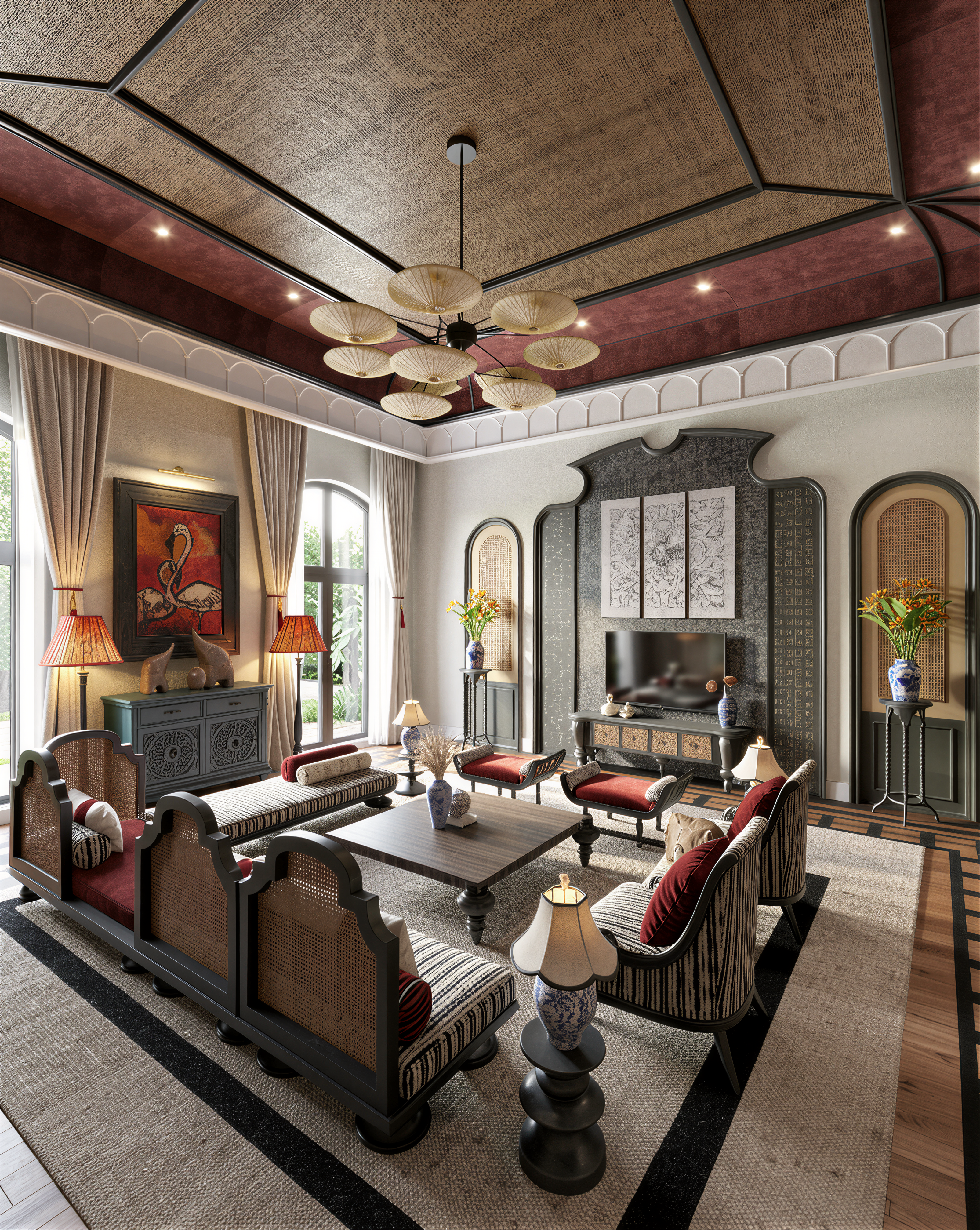
Transform interior design screenshots (captured from 3D software) into realistic, high-quality renderings.
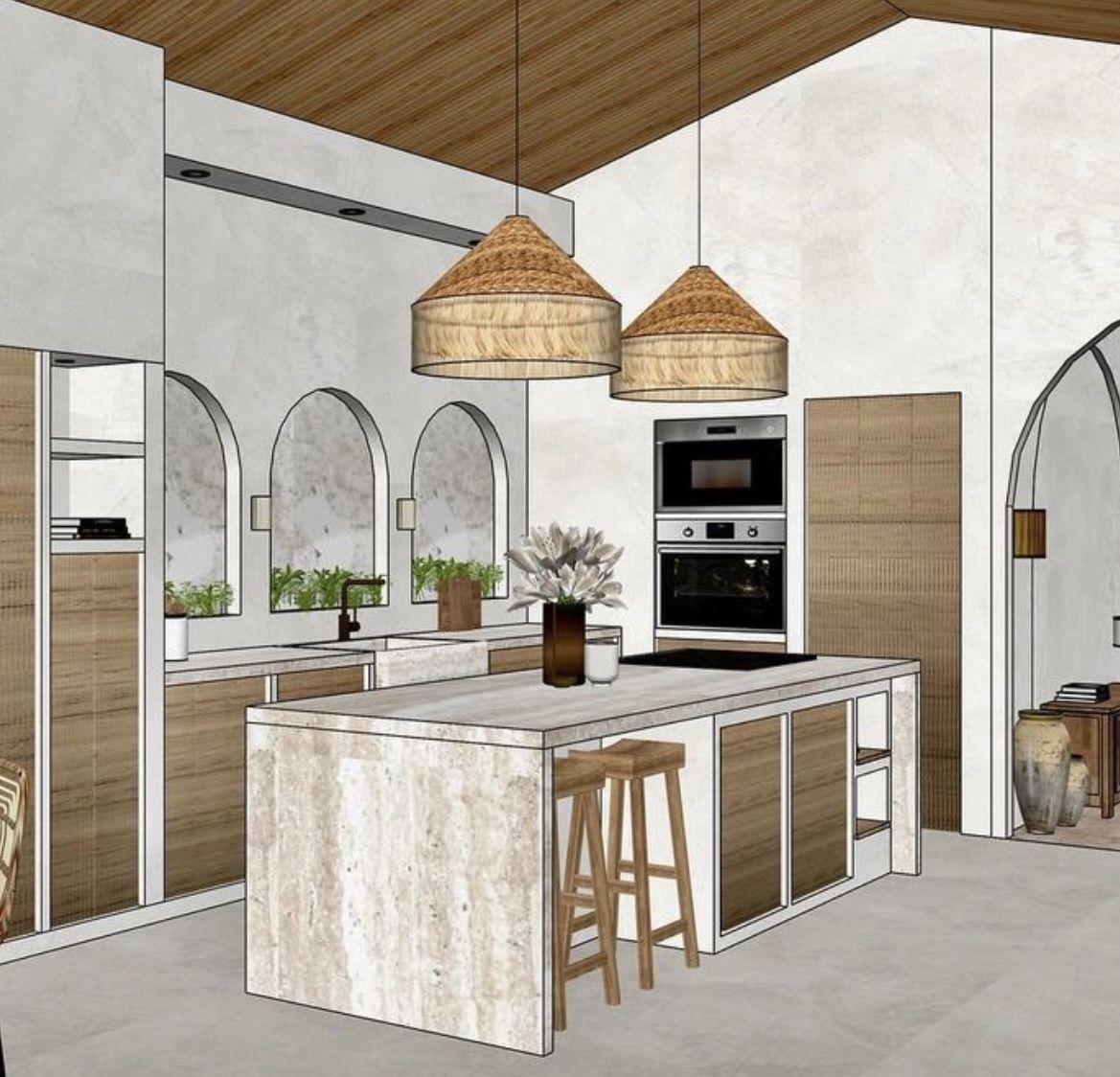
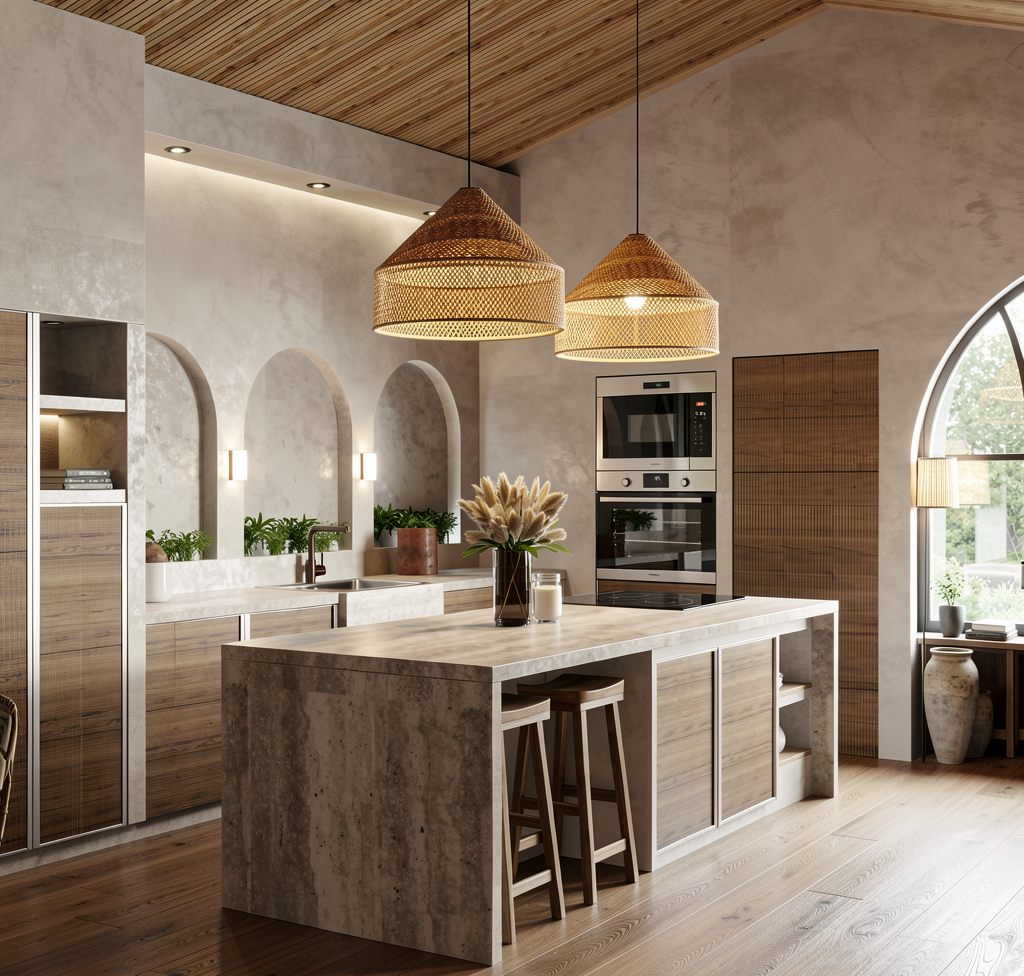 Before
After
<>
Before
After
<>
Purpose
Transform interior design screenshots (captured from 3D software) into realistic, high-quality renderings.
Customize lighting, atmosphere, materials, furniture styling, environment, room mood, and design themes to match your creative vision.
Instructions
Step 1: Drag and drop your screenshot or interior design image into the "3D Interior Image" section.
Step 2: Choose either "Basic Mode" or "Advanced Mode" depending on your workflow, then configure the appropriate prompt.
Step 3: Set the "Image Generation Steps" (recommended: 4 or 6) and select the "Image Resolution" (up to 2K).
Step 4: Click "Render" and wait for the AI to generate the result.
Notes
For higher-resolution outputs such as 4K, 8K, or 10K, use the Upscale or Upscale Pro feature.
Open the "History" panel.
Drag the rendered image into the "Source Image for Upscaling" section.
Select your desired output resolution.
Start the upscaling process.
Tips:
For the best results, use clear screenshots that accurately show the room layout, furniture placement, materials, lighting conditions, and decorative elements. Higher-quality source images generally produce more realistic and visually appealing interior renderings.
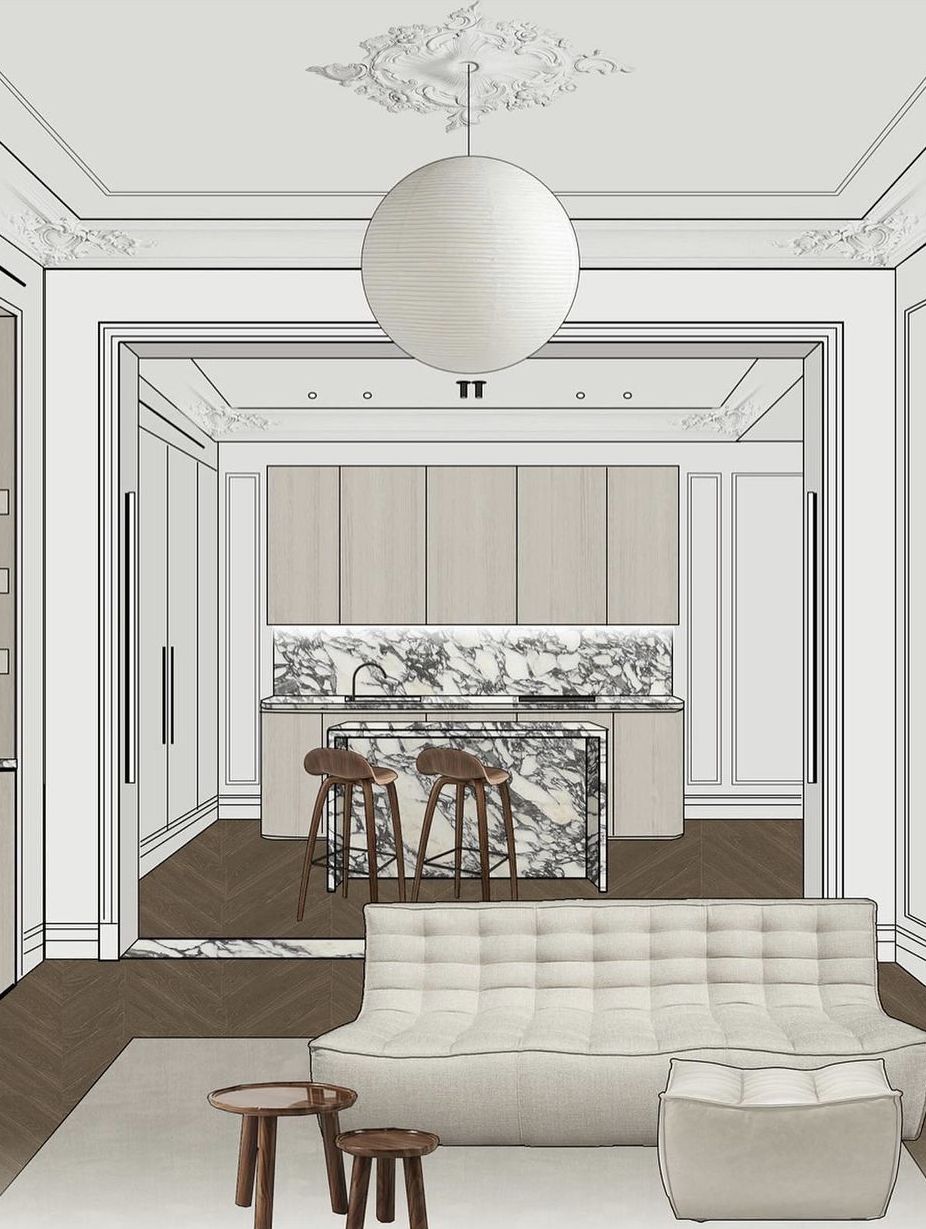
 Before
After
<>
Before
After
<>
 Before
After
<>
Before
After
<>