

Batch Render
Render multiple images in a batch using a reference image and customizable rendering settings.
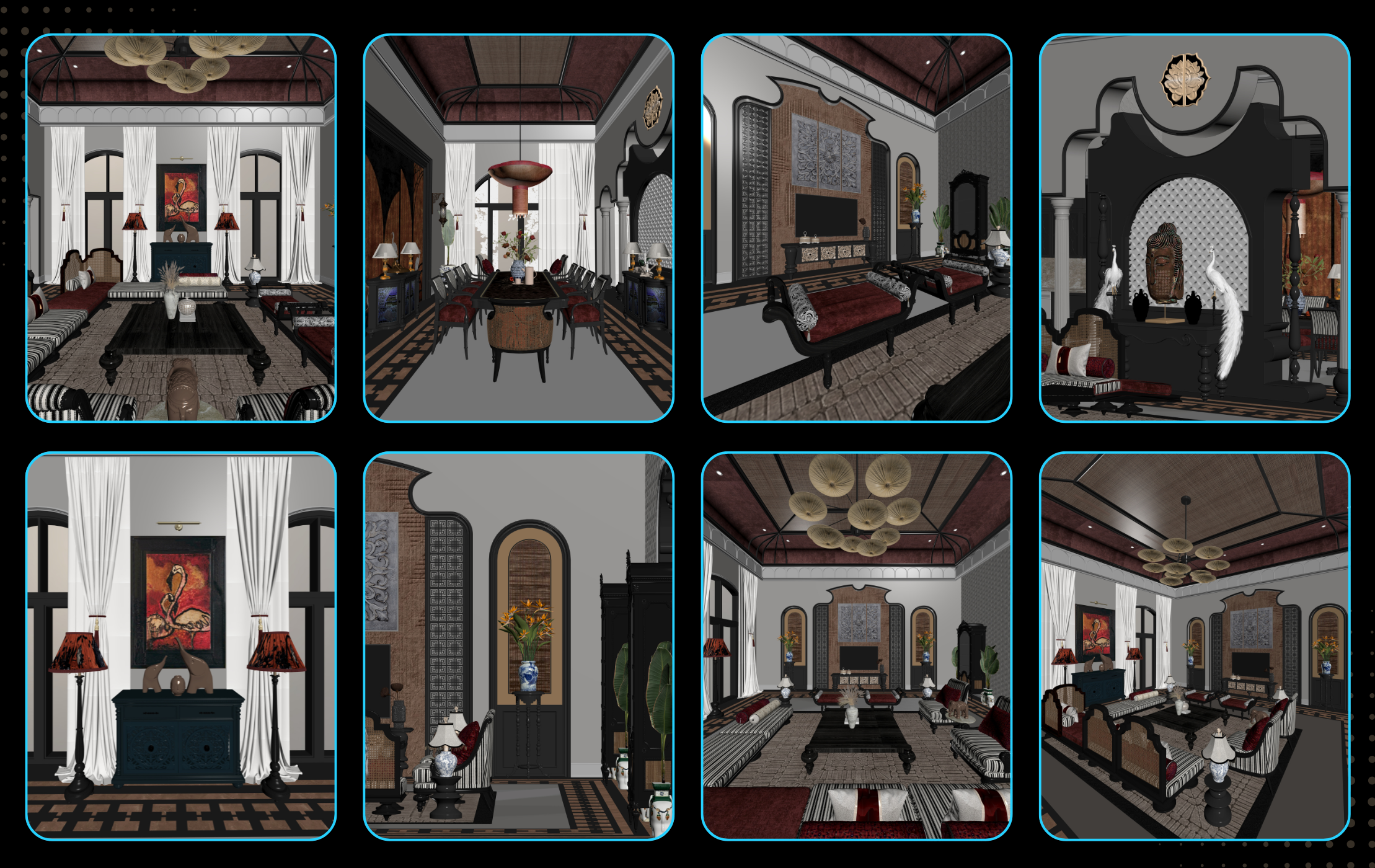
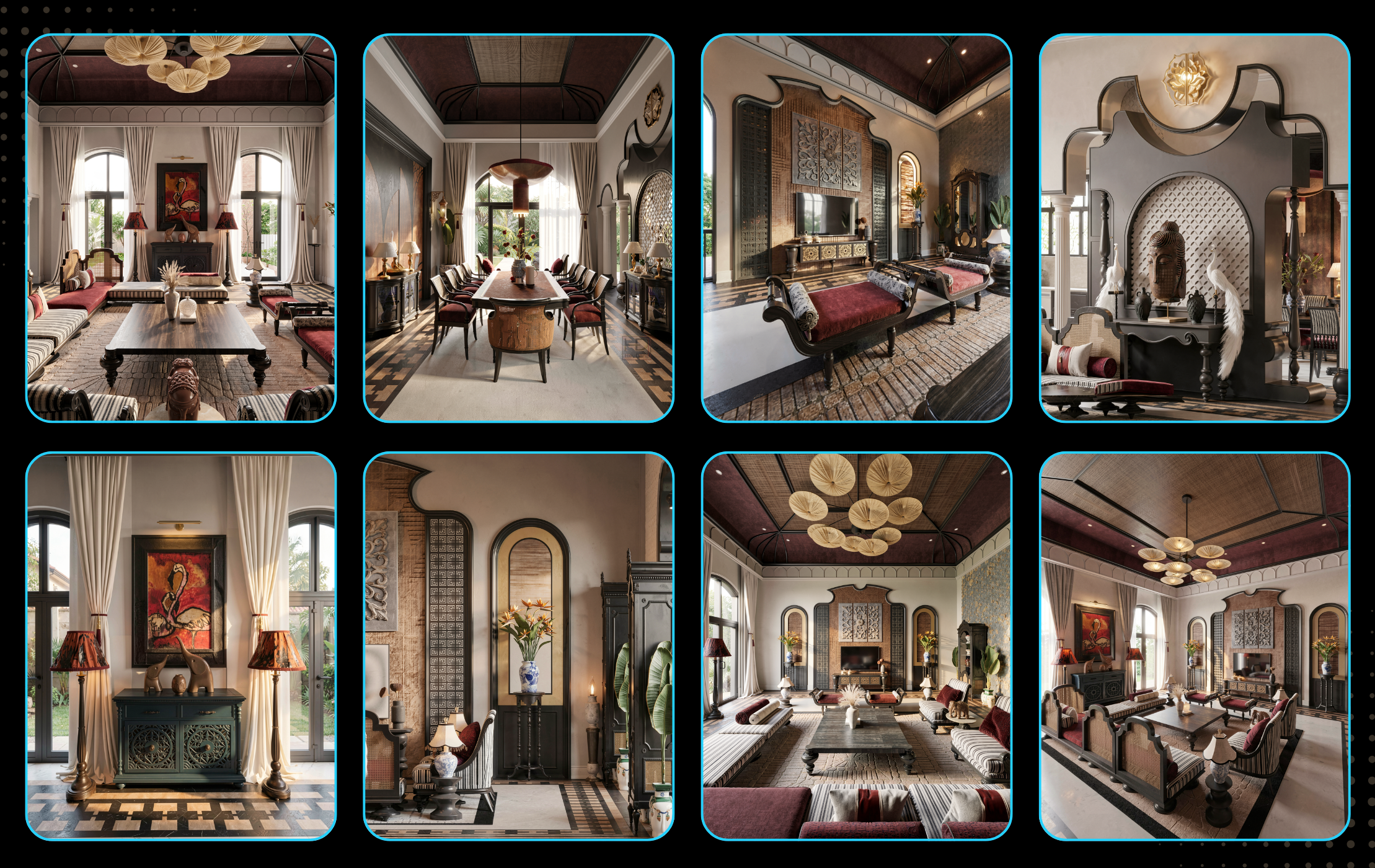 Before
After
<>
Before
After
<>
Purpose
Render multiple images in a batch using a reference image and customizable rendering settings.
Automatically apply a consistent visual style, materials, lighting, environment, and atmosphere across all selected images.
Ideal for large architectural projects, masterplans, residential developments, and visualization workflows requiring consistent results.
Instructions
Step 1: Upload one or more images into the "Reference Images" section to define the desired visual style.
Step 2: Upload the screenshots or source images you want to render into the "Images to Render" section.
Step 3: Configure the rendering settings:
Materials – Define façade materials, paving, vegetation, furniture, and other surface finishes.
Lighting – Control time of day, sunlight, shadows, weather, and overall lighting conditions.
Environment – Customize surrounding context, landscaping, roads, vehicles, people, and urban elements.
Additional Prompts – Add extra Tiếng Anh: Instructions to guide the AI toward the desired visual outcome.
Step 4: Select the desired Output Resolution and enable Batch Rendering.
Step 5: Click "Render" and wait for the AI to process all images automatically.
Tips:
- Use high-quality reference images that best match your target style for the most consistent results.
- Images to be rendered should have high resolution and fully display textures so that the AI can recognize materials and render the image optimally.
- If you need 4K, 8K, or 10K images, use the Upscale or Upscale feature of Hexagon AI.