
Automatic Background Removal
Automatically remove the background from an image and isolate the main subject.
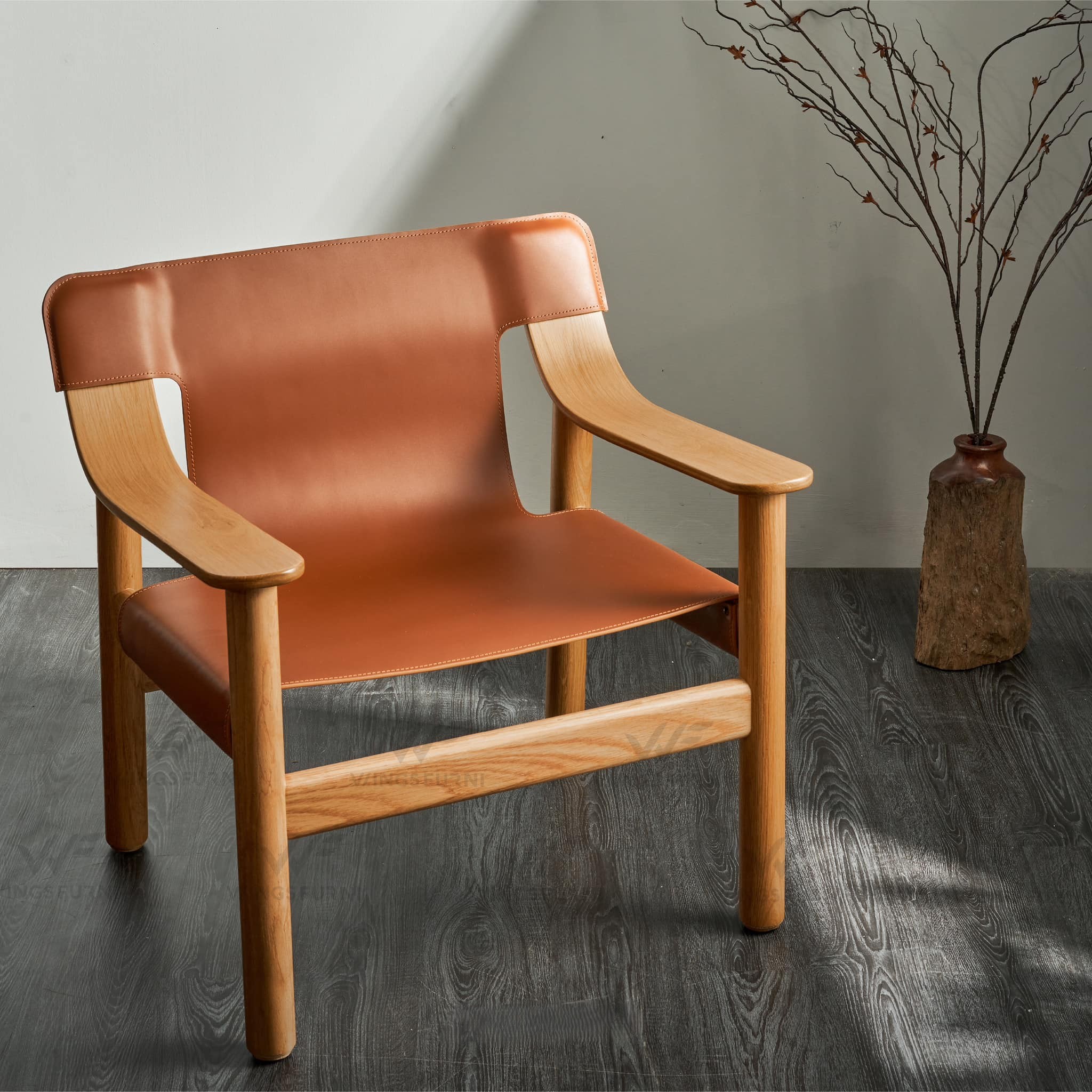
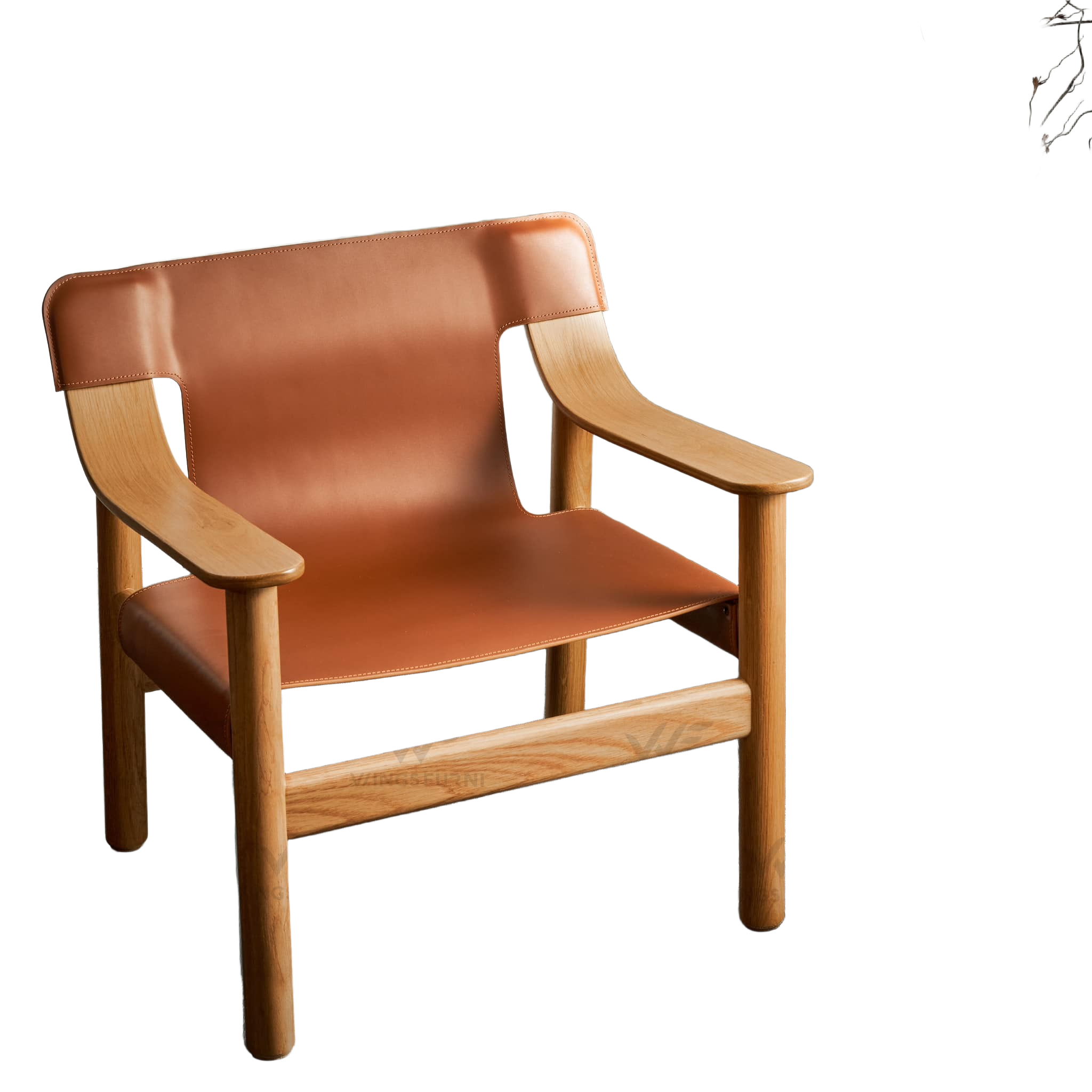 Before
After
<>
Before
After
<>
Purpose
Automatically remove the background from an image and isolate the main subject.
Generate clean cutouts with transparent backgrounds for further editing, compositing, presentations, or design work.
Ideal for people, furniture, products, vehicles, vegetation, architectural elements, and other objects.
Instructions
Step 1: Drag and drop your image into the "Background Removal Image" section.
Step 2: Select the desired "Image Resolution" and click "Remove Background".
Tips:
For best results, use high-quality images with a clear distinction between the subject and the background.
Images with sharp edges and good contrast generally produce more accurate cutouts.
Transparent-background outputs are ideal for graphic design, architectural presentations, photo compositing, and marketing materials.
If the image contains complex details such as hair, foliage, glass, or fine structures, using a higher-resolution source image can improve extraction quality.

 Before
After
<>
Before
After
<>
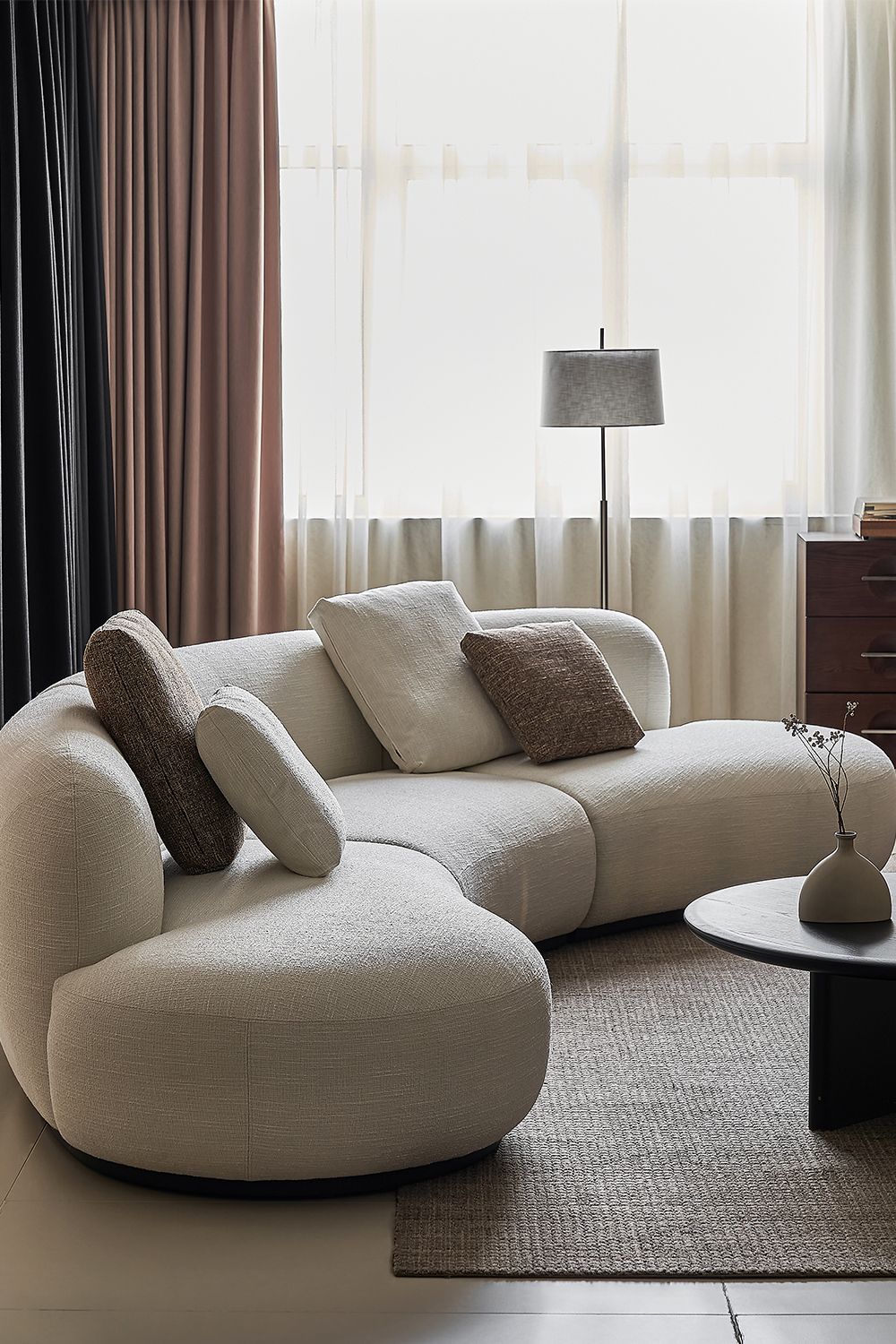
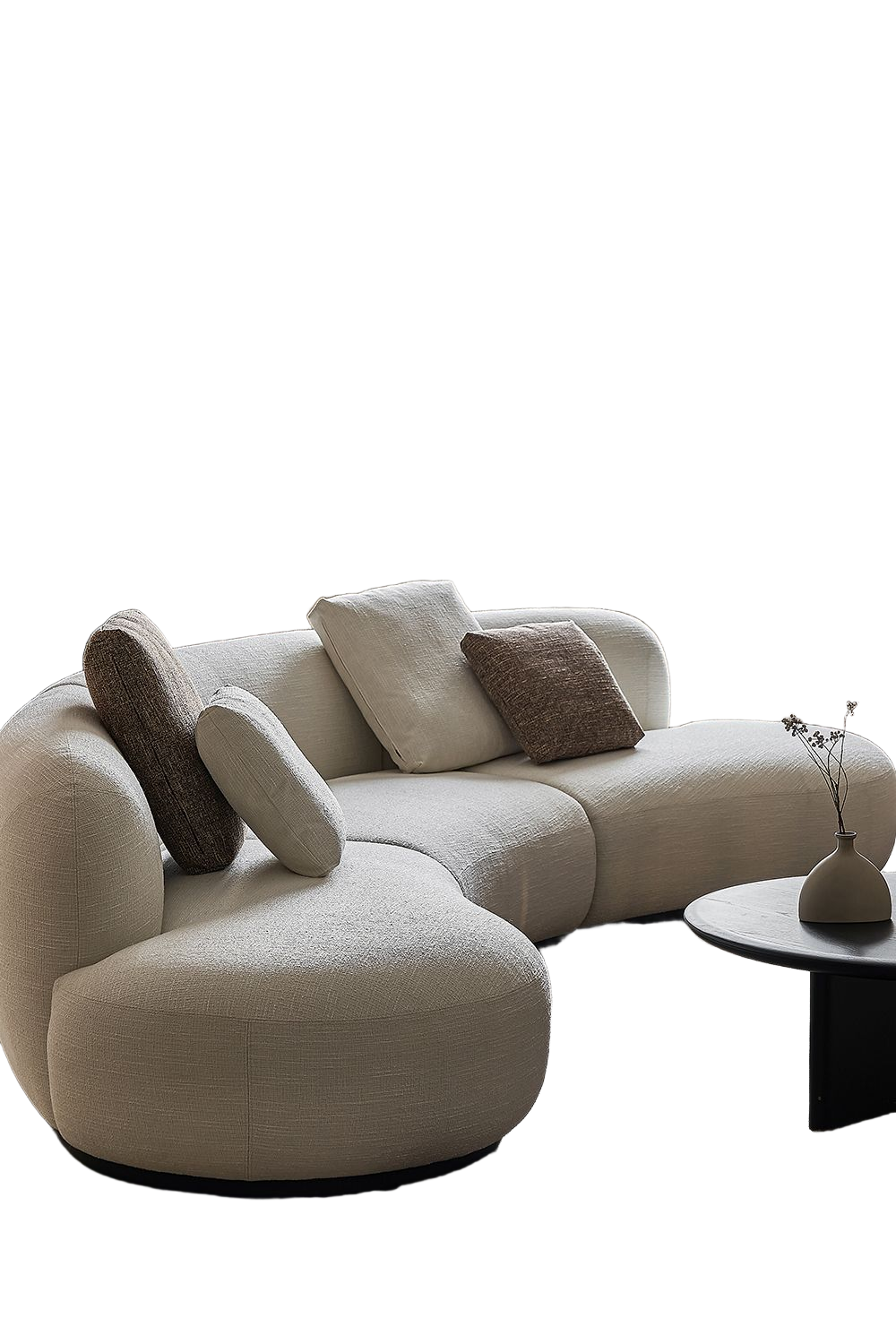 Before
After
<>
Before
After
<>